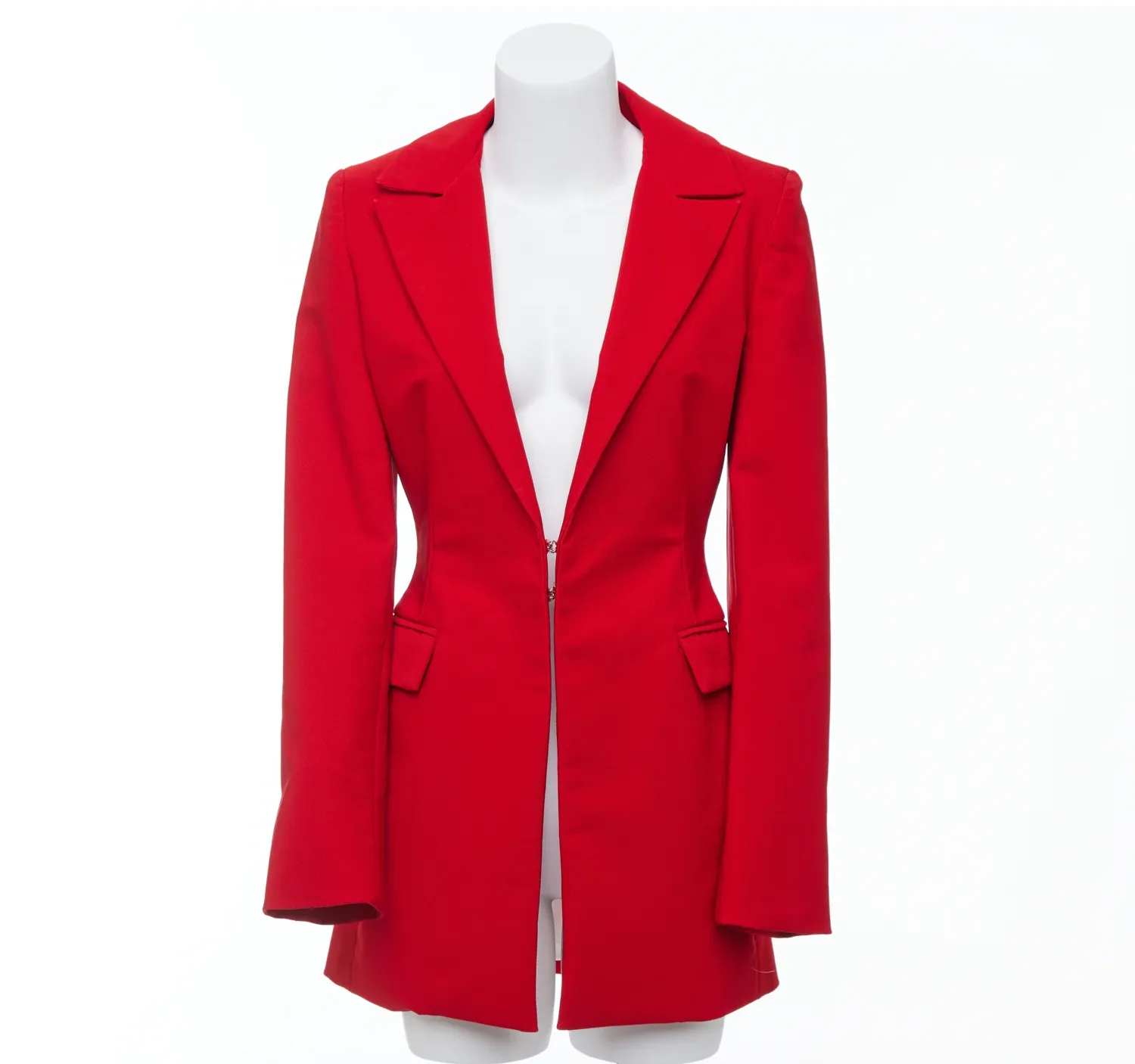
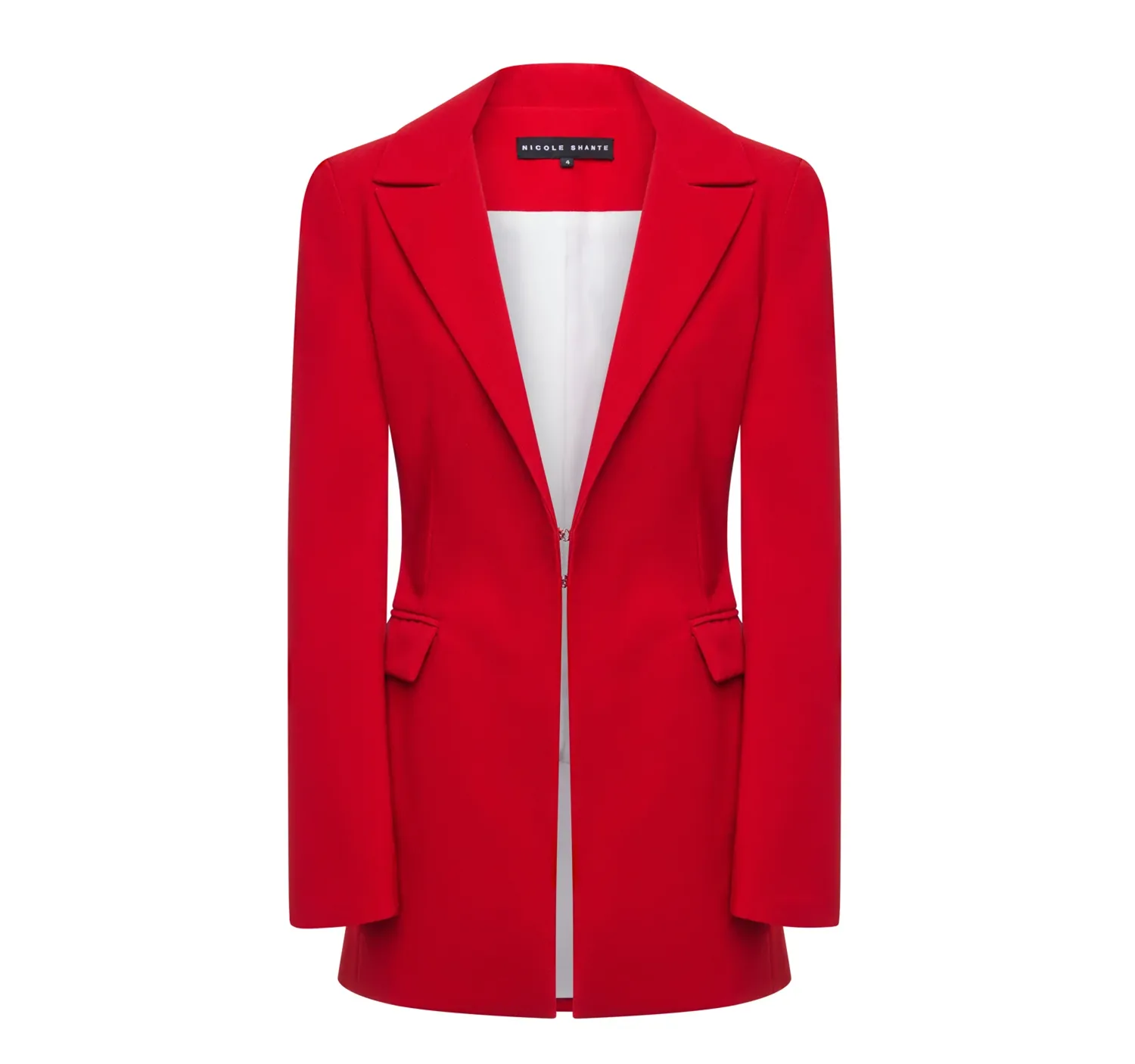
Red Blazer
Ghost mannequin edit — mannequin removed, inner label composited for a clean 3D form.
GHOST MANNEQUIN

The ghost mannequin effect looks like studio magic, but it is really two photographs and a disciplined Photoshop workflow. This tutorial walks through the exact process professional editors use — the same one behind our ghost mannequin service — from setting up the two source images to the final shadow pass, so you can create the effect yourself or judge an editor's work with a trained eye.
The effect is a composite, so everything depends on the photography. You need two images of the same garment, shot from the same position: the garment on the mannequin (the main shot) and an insert shot of the inside of the garment — the inner back panel, collar or lining — photographed flat or held open at the same scale. Our guide to photographing clothing for ghost mannequin editing covers exactly which inserts to capture for each garment type.
In Photoshop you will use layer masks, the Pen Tool, layer alignment, and basic retouching tools (Clone Stamp, Healing Brush, Liquify). Work non-destructively: duplicate layers before you cut, and keep the original insert untouched on its own layer.
Open the main shot and place the insert shot as a second layer above it. Lower the insert layer's opacity to about 50% and scale or rotate it until the garment's edges — shoulders, neckline, side seams — line up with the main shot. If both photos were taken from a fixed tripod position, alignment takes seconds; if they drifted, match the neckline first, because that is where the composite will be judged.
Once aligned, lock the insert layer. You will reveal only small parts of it — mainly the inner neckline and any area the mannequin hides — so precision here saves cleanup later.
On the main layer, trace the garment's outline with the Pen Tool and convert it to a layer mask, keeping the garment and hiding the background and everything outside the silhouette. Then mask out the visible mannequin parts inside the silhouette — the neck cap, arms or stand showing through openings. At this point the openings will show whatever is behind the layer, which is why the insert goes underneath in the next step.
Move the aligned insert layer below the main layer. The inside of the garment now shows through the openings exactly where the mannequin used to be. Refine the insert's own mask so it appears only inside the garment's openings — never spilling outside the silhouette.
This join is the heart of the technique, and the part clients notice first. The inner label should sit at a believable depth, the collar's inner band should curve with the neckline, and no hard edge should show where the two photos meet. This is the same work our neck joint service specialises in for complex garments — multi-part joins at sleeves, waistbands and hems follow exactly the same principle.
Zoom to 100% along every join. Soften mask edges by 0.5–1 px where the two photos meet, then match the insert's brightness and colour temperature to the main shot with Curves and Hue/Saturation adjustment layers clipped to the insert layer only. Inserts are usually shot in slightly different light, and a visible tonal step at the neckline is the most common beginner mistake — see our list of ghost mannequin mistakes to avoid.
Rebuild any texture the mannequin hid: use the Clone Stamp on a new empty layer to extend fabric weave, stitching or prints across the joined area, sampling from nearby fabric so the pattern direction stays believable.
Add a soft contact shadow inside the collar and under the hem on a separate layer (Multiply blend mode, low opacity) so the garment keeps its three-dimensional form instead of looking like a flat cut-out. Remove dust, loose threads and crease distractions with the Healing Brush — but keep natural fabric folds; over-smoothing is what makes cheap edits look plastic.
Finish with a gentle Liquify pass only if the silhouette needs symmetry correction, then a final colour grade matched to the rest of the catalogue. Export a layered master file first, then flattened copies in your store's size and format.
Drag across each example to compare the original mannequin photograph with the finished image — real Pic Visual production work from our portfolio.
Red Blazer
Ghost mannequin edit — mannequin removed, inner label composited for a clean 3D form.
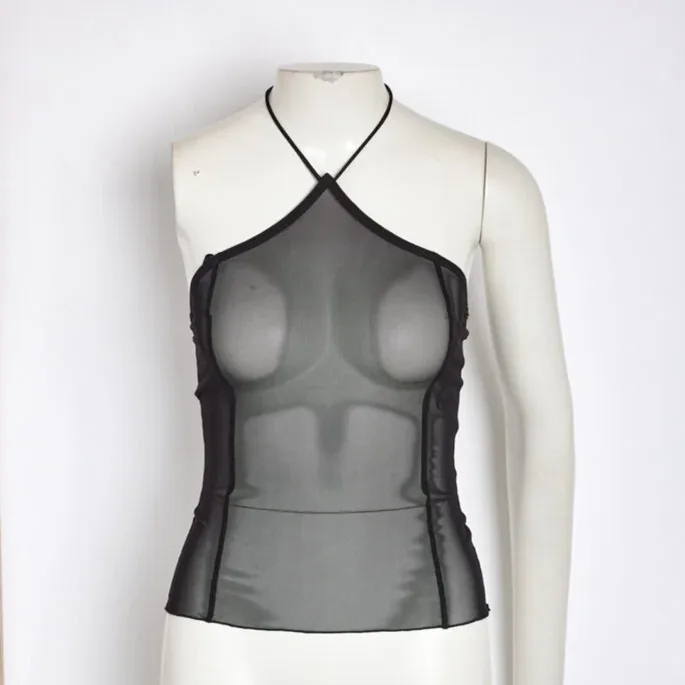
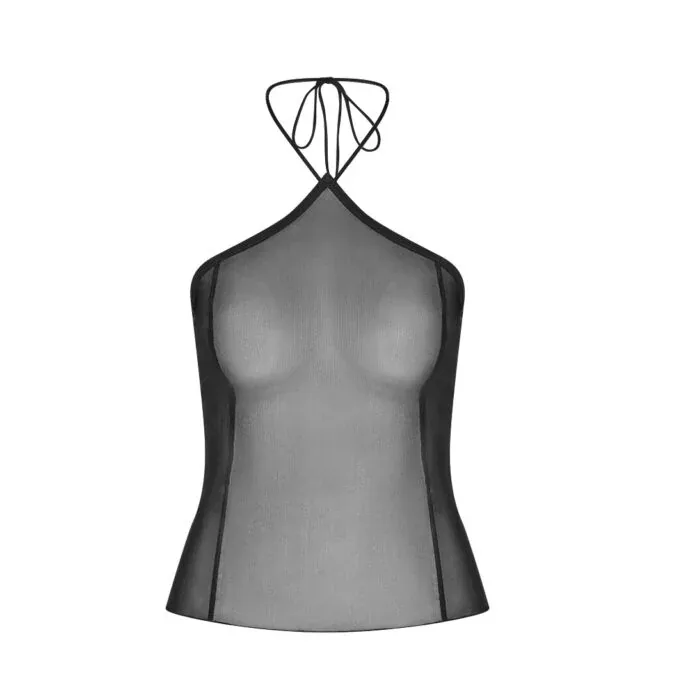
Black Halter Top
Neck-joint compositing keeps the straps and neckline exactly in place.
Once the workflow is familiar, speed comes from preparation, not shortcuts. Batch your garments by join type — all simple neck joins together, then multi-join pieces — so your mask and blending settings carry across a set. Save a reusable action for the repetitive steps (file setup, layer structure, export) and keep a small library of your own well-blended collar joins to compare against when a new garment fights you.
Two habits protect quality at speed: always judge joins at 100% zoom (defects invisible at fit-to-screen are obvious to a shopper zooming your product page), and do a final pass over the whole set side by side — consistency across a catalogue is where professional work separates from one-off edits, and it is the first thing that slips when editors rush.
For a handful of images, this workflow is perfectly manageable in-house once practised — allow 15–30 minutes per garment while learning, less for simple tees. The maths changes at catalogue scale: hundreds of SKUs, several joins per garment and a launch deadline turn a craft into a production problem. That is the point where brands hand the work to a specialist ghost mannequin service at $3–$10 per image with the insert compositing, colour matching and shadows handled end to end. If you are weighing that decision, start with a free trial of up to 5 images and compare the finish against your own edits on the same files.
For a simple garment with one neck join, an experienced editor needs about 5–10 minutes once the two photos are aligned. Complex pieces — jackets with sleeve and hem joins, two-piece sets, sheer fabrics — take longer, and your first attempts will be slower. Most of the time goes into mask refinement and blending the join, not the cut-out itself.
Not convincingly for most garments. Without an insert shot there is no real image data for the inside of the collar or lining, so the area must be faked by cloning — which usually shows on close inspection. Some simple open-neck garments can be rebuilt from texture alone, but the reliable professional method is always the two-photo composite described above.
A visible tonal step where the insert meets the main shot — the insert was photographed in different light and never colour-matched. The second is over-smoothing: removing every fold until the garment looks moulded from plastic. Both are covered, with fixes, in our guide to ghost mannequin mistakes.
Layer masks and the Pen Tool do most of the work, followed by Curves for matching the insert, the Clone Stamp for rebuilding hidden texture, and Liquify for small silhouette corrections. You do not need plugins or AI tools for the core technique.
Need it done for your catalog? Pic Visual’s ghost mannequin service delivers hand-finished, catalog-ready images at $3–$10 per image with 24-hour delivery — or start with a free trial of up to 5 images and judge the finish on your own products. See also our dedicated neck joint service page for joint types, pricing and FAQs.